 Architect Add-in for Excel Install Instructions
For troubleshooting or further support, contact our support team via Slack or email support@architect.co.
Users without accounts can create an account here.
Requirements:
- Excel 2021 or later - specifically Version 2002 (the 2002 does not refer to the year) / build 12527.20092 or higher
- Architect account with api key/secret (created here)
How to Check Excel Version:
- Open Excel and click on Home in the top left corner. Click on Account or Help to view your Excel version.
- In the About Excel section, check the version number. The version number should be above 2002.


Install Instructions:
-
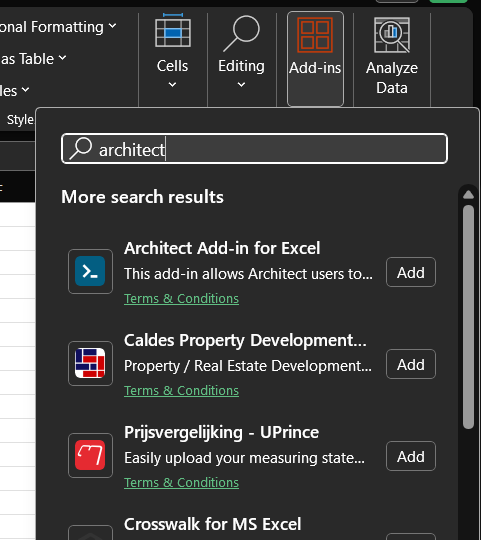
Open Excel and navigate to the Home tab and click on Add-ins.

-
Search for Architect Add-in for Excel and click Add.
-
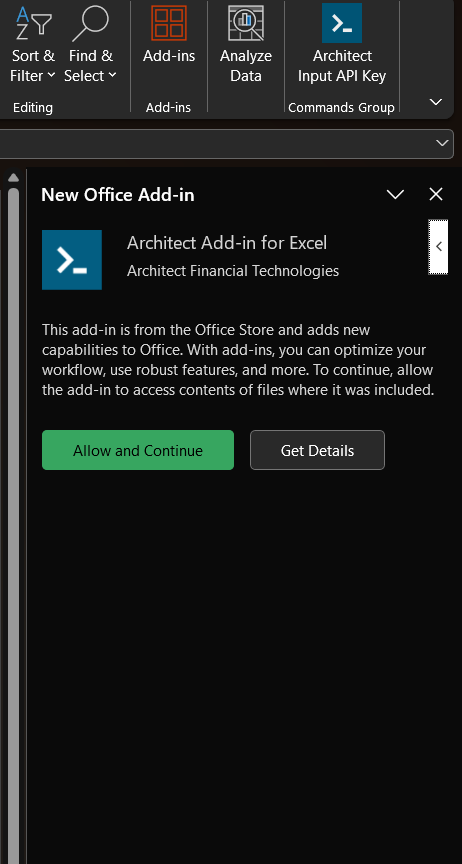
Click on Add to install it. You should see the task pane below. Click "Allow and Continue".
-
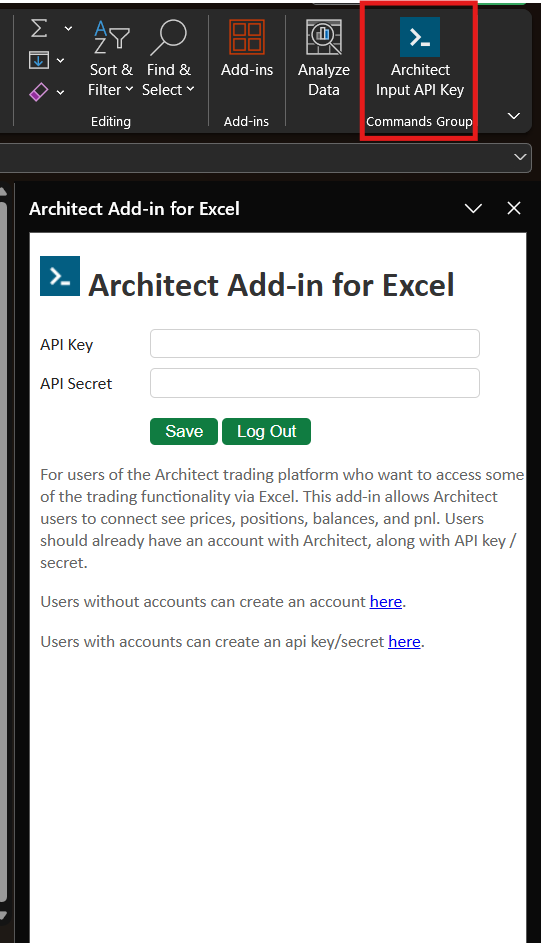
Click Architect Input API Key to open the task pane if not already opened.
-
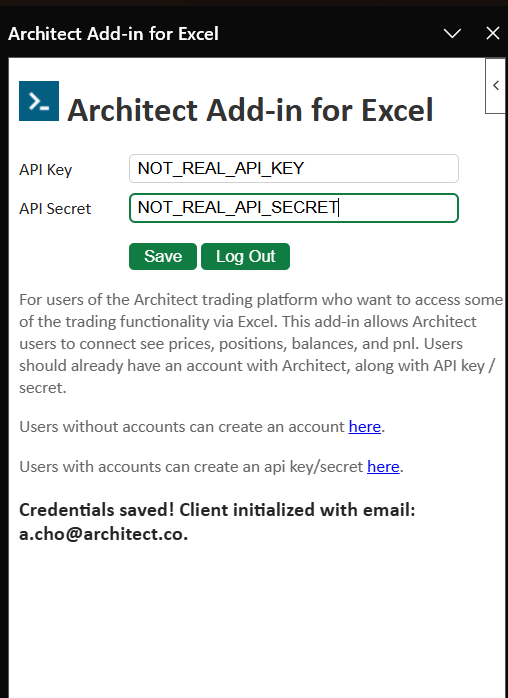
Input your API key and secret. Users with accounts can create an api key/secret here.
Once you click "Save", it should say that your Client was initialized with your email.
-
Finished!
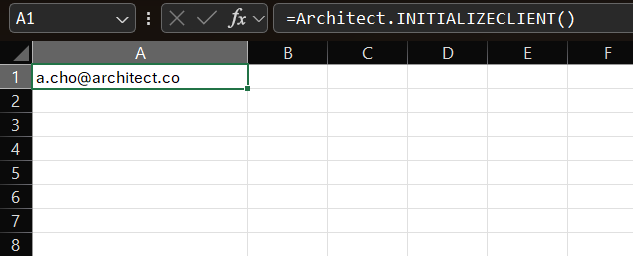
To check that your API key and secret are working, input the function =ARCHITECT.INITIALIZECLIENT() in a cell and you should get your email.
To get an overview of the functions, go to the functions help page.
- For an example use the add-in, download the Excel Desktop Example. Or check out the Excel Online Example.